
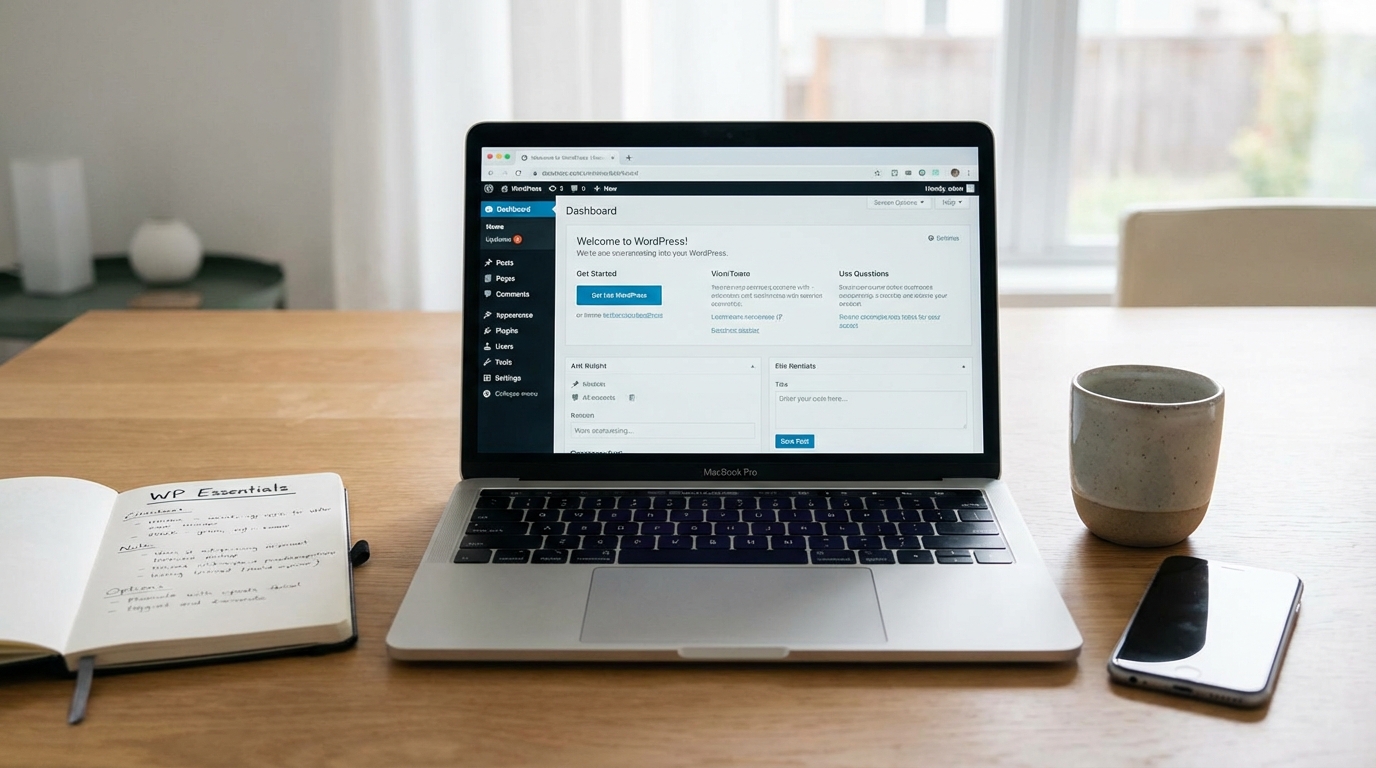
Welcome to the world of WordPress! If you're looking to build a website, you've likely heard this name. Powering over 43% of all websites on the internet, WordPress is the undisputed king of content management systems (CMS). Its immense popularity stems from a powerful combination of flexibility, ease of use, and a massive community of support. Whether you dream of starting a personal blog, launching a portfolio to showcase your work, creating an online store, or building a robust business website, WordPress provides the tools to bring your vision to life. However, for a beginner, the sheer number of options and the initial learning curve can feel a bit daunting. Where do you even begin? This guide is designed to be your roadmap. We will walk you through all the essential WordPress site basics, stripping away the complexity and focusing on what you truly need to know. We'll start from the very beginning, covering the foundational decision of choosing the right WordPress platform, guide you through setting up your domain and hosting, and then dive into the fun parts: customizing your site's design with themes, adding new features with plugins, and creating your first pieces of content. Finally, we’ll equip you with the knowledge to manage and optimize your site for long-term success. Consider this your friendly, step-by-step introduction to creating something amazing online.
Getting Started: Choosing Your Path with WordPress.org vs. WordPress.com
Before you write a single word or choose a single color, you must make a foundational decision. One of the most common points of confusion for newcomers is understanding the difference between WordPress.org and WordPress.com. They share a name and a core technology, but they are fundamentally different platforms designed for different needs. Getting this choice right from the start is crucial for the future of your website.
WordPress.com is a for-profit, hosted service. Think of it as the "all-in-one" package. When you sign up, they handle the hosting, domain name (initially as a subdomain like yoursite.wordpress.com), security, and backups for you. This makes it incredibly easy to get started; you can have a live site in minutes without worrying about the technical backend. However, this convenience comes with limitations. The free and lower-tier plans have restrictions on monetization (you can't run your own ads), plugin installation (you can't add custom functionality), and theme customization. You have less control overall. It's an excellent choice for hobby bloggers or those who want a simple, maintenance-free online presence.
WordPress.org, on the other hand, is the self-hosted version. This is the free, open-source software that you can download and install on any web host of your choice. This path gives you complete control and ownership of your website. You can install any theme or plugin you want, customize the code, monetize your site in any way you see fit, and have full access to your site's files and database. This freedom is the reason most serious websites use this version. The trade-off is that you are responsible for purchasing a domain name, signing up for a web hosting account, and handling site maintenance, including security and backups. While this might sound intimidating, the process has become incredibly streamlined, and most hosting providers offer simple one-click WordPress installation. For anyone serious about building a professional or business website, understanding these WordPress site basics points directly to WordPress.org as the superior long-term choice.
The First Steps: Domain, Hosting, and Installation
Once you've decided on the self-hosted route with WordPress.org, it's time to lay the digital foundation for your site. This involves two key components: a domain name and a web hosting account. These two elements work together to make your website accessible to the world.
Your domain name is your website's address on the internet (e.g., google.com, yourwebsite.com). It's how people will find you, and it's a critical part of your brand identity. When choosing a domain name, aim for something that is:
- Memorable and Easy to Spell: Avoid complex words, hyphens, or numbers if possible.
- Relevant to Your Niche: It should give visitors an idea of what your site is about.
- Brandable: A unique and catchy name is often better than a generic, keyword-stuffed one.
- Concise: Shorter domains are generally easier to remember and type.
You can purchase a domain name from registrars like Namecheap or GoDaddy. However, many web hosting companies offer a free domain name for the first year when you sign up for a hosting plan, which is a great perk for beginners.
Web hosting is the service that provides the physical server space where your website's files are stored. It's the engine that keeps your site running and available 24/7. For beginners, "Shared Hosting" is the most common and affordable option. With shared hosting, you share server resources with other websites, which keeps costs low. As your site grows, you can upgrade to more powerful options like VPS or Dedicated hosting. When selecting a host, look for good customer support, positive reviews, and, most importantly, a "one-click WordPress install" feature. Reputable hosts like Bluehost, SiteGround, and Hostinger are popular in the WordPress community and make the setup process incredibly simple. Once you've signed up and linked your domain, you can use their control panel to install WordPress on your account with just a few clicks, officially bringing your site to life.
Designing Your Digital Storefront: Understanding Themes
With WordPress installed, you now have a functional, albeit very plain, website. The next step is to shape its appearance and layout. This is where themes come in. A WordPress theme is a collection of files that controls the entire visual design of your site—from the color scheme and typography to the layout of your pages and posts. Think of it as the "skin" or "template" for your website. Changing your theme is one of the most powerful and exciting parts of learning the WordPress site basics because it can completely transform your site's look and feel without touching a single line of code.
You can find thousands of themes to choose from, which generally fall into two categories: free and premium.
- Free Themes: The official WordPress.org theme directory contains thousands of high-quality free themes that have been vetted by a review team. You can browse and install these directly from your WordPress dashboard under "Appearance" > "Themes" > "Add New". Free themes are perfect for getting started, but they may have limited features and support options.
- Premium Themes: These are sold on marketplaces like ThemeForest, StudioPress, or by independent theme developers. Premium themes typically offer more advanced features, greater customization options, dedicated customer support, and regular updates. While they come at a cost, the investment can be worthwhile for a professional-looking site.
When selecting a theme, it's about more than just looks. Consider the following:
- Responsiveness: Does the theme look good and function well on all devices, including desktops, tablets, and smartphones? This is non-negotiable in today's mobile-first world.
- Customization Options: Check if the theme uses the built-in WordPress Customizer ("Appearance" > "Customize"). This allows you to see live previews of your changes (like colors, logos, and layouts) before you publish them.
- Simplicity: It can be tempting to choose a theme packed with a million features. However, bloated themes can slow down your site. Often, a simpler, lightweight theme that does one thing well is a better choice. You can always add specific features later with plugins.
- Reviews and Updates: Check the theme's ratings, reviews, and the date it was last updated. A well-maintained theme is more secure and compatible with the latest version of WordPress.
Once you've installed and activated your chosen theme, you can begin customizing it to match your brand and vision, truly making the website your own.
Adding Functionality: The Power of Plugins
If themes control your site's appearance, plugins control its functionality. Plugins are small pieces of software you can install on your WordPress site to add new features or extend existing ones. They are the key to WordPress's incredible flexibility, allowing you to build almost any type of website imaginable without needing to be a developer. Want to add a contact form, improve your site's SEO, create an online store, or protect your site from spam? There's a plugin for that.
Just like themes, there is a vast ecosystem of free and premium plugins. The official WordPress.org plugin directory offers over 59,000 free plugins that you can install directly from your dashboard under "Plugins" > "Add New". While the possibilities are nearly endless, it's important to be strategic. Installing too many poorly coded plugins can slow down your site or create security vulnerabilities. A core part of mastering WordPress site basics is knowing which types of plugins are essential for almost every website. Here are a few must-have categories:
- SEO (Search Engine Optimization): An SEO plugin helps you optimize your content to rank higher in search engines like Google. Plugins like Yoast SEO or Rank Math guide you by analyzing your content, helping you manage sitemaps, and allowing you to customize how your pages appear in search results.
- Security: Protecting your site from hackers and malware is critical. A security plugin like Wordfence or Sucuri Security will add a firewall, scan for malicious code, and implement other security hardening measures to keep your site safe.
- Caching: Speed is everything on the web. A caching plugin like W3 Total Cache or WP Super Cache dramatically improves your site's loading speed by creating static versions of your pages, which are served to visitors much faster. Many modern hosting companies now offer their own superior caching solutions, so check with your host first.
- Contact Forms: You need a way for visitors to get in touch with you. Plugins like WPForms or Contact Form 7 make it incredibly easy to build and add simple or complex contact forms to your site.
- Analytics: To understand your audience and grow your site, you need data. A plugin like MonsterInsights or Site Kit by Google simplifies the process of connecting your website to Google Analytics, allowing you to view key visitor statistics directly in your WordPress dashboard.
When choosing a plugin, always check its rating, number of active installations, and update history to ensure it's reliable and well-maintained. By carefully selecting a handful of high-quality plugins, you can add powerful, professional-grade features to your site with ease.
Creating Compelling Content: Pages vs. Posts
Now that your site is set up, designed, and enhanced with plugins, it's time for the most important part: adding content. In WordPress, content is primarily organized into two types: Pages and Posts. Understanding the distinction between these two is a fundamental aspect of managing your WordPress site effectively.
Pages are intended for static, timeless content. This is the core information about your site that doesn't change very often. Think of pages like the main sections of a book. Good examples of pages include:
- Your "Home" page
- An "About Us" page detailing your story or mission
- A "Contact" page with your information and a contact form
- A "Services" or "Products" page outlining what you offer
- A "Privacy Policy" page
Pages are hierarchical, meaning you can nest them as sub-pages (e.g., a "Team" page could be a sub-page of "About Us"). They are not organized by date and do not typically appear in your site's main blog feed.
Posts, on the other hand, are for dynamic, timely content, usually presented in reverse chronological order (newest first). This is the "blog" part of your website. Posts are what you use to publish articles, news updates, announcements, and any content that is part of an ongoing conversation with your audience. Each post can be assigned to categories and tags, which help organize your content and make it easier for visitors to find related articles. For example, a food blog might have categories like "Desserts" and "Main Courses," and a post about a chocolate cake could have tags like "chocolate," "baking," and "gluten-free."
You create both pages and posts using the WordPress Block Editor (also known as Gutenberg). This editor allows you to build your content using "blocks." Each element—a paragraph, an image, a headline, a video, a button—is its own block. This modular approach gives you immense flexibility to create rich, visually appealing layouts without needing to know any code. Learning to use basic blocks for text, images, and headings is a core skill for any WordPress user. A good content strategy often involves a combination of static Pages to provide foundational information and a steady stream of engaging Posts to attract and retain an audience.
Keeping Your Site Healthy: Management and Optimization
Launching your website is a huge accomplishment, but the work doesn't stop there. Proper ongoing management and optimization are crucial for the long-term health, security, and success of your site. Neglecting these tasks can lead to slow performance, security breaches, or a broken website. Think of this as the regular maintenance your car needs to keep running smoothly.
One of the most critical management tasks is performing regular updates. WordPress is constantly evolving, with a dedicated community working to improve the software and patch security vulnerabilities. You will see update notifications in your dashboard for three things:
- WordPress Core: The main software itself. These updates, especially security releases, should be applied as soon as possible.
- Themes: Theme developers release updates to fix bugs, add features, and ensure compatibility with the latest version of WordPress.
- Plugins: Just like themes, plugins need to be kept up-to-date for security and functionality.
Before running any major update, it's a best practice to first create a backup of your website. A backup is a complete copy of your site's files and database. If an update causes an issue, you can restore your site from the backup. Many hosting providers offer automated daily backups, and you can also use a backup plugin like UpdraftPlus for more control.
Beyond updates, you should focus on performance optimization. A slow-loading website frustrates visitors and can negatively impact your search engine rankings. Here are a few basic yet powerful optimization tips:
- Image Optimization: Large image files are one of the biggest causes of slow page loads. Before uploading images, compress them using a tool like TinyPNG or install an image optimization plugin like Smush to automatically compress them for you.
- Use Caching: As mentioned in the plugins chapter, a caching plugin is essential. It significantly reduces the work your server has to do to display your site, resulting in much faster loading times for your visitors.
- Choose a Good Host: Your web host plays a massive role in your site's speed. A reliable hosting provider with a modern technology stack (like PHP 8+, SSD storage, etc.) provides a solid foundation for a fast website.
By dedicating a small amount of time each month to these management and optimization tasks, you ensure your WordPress site remains secure, fast, and reliable for your audience.
Embarking on your WordPress journey is an exciting venture into digital creation. We've journeyed through the entire process, starting with the most fundamental WordPress site basics and building from there. You now understand the critical difference between the hosted simplicity of WordPress.com and the unparalleled freedom of self-hosted WordPress.org, empowering you to choose the right platform for your ambitions. We’ve demystified the technical first steps of securing a domain and hosting, showing you how straightforward the modern installation process can be. You've learned that themes are the artistic soul of your site, defining its visual identity, while plugins are the functional brain, adding powerful features with just a few clicks. We've distinguished between the static, foundational role of Pages and the dynamic, engaging nature of Posts, giving you a clear framework for your content strategy. Finally, we've underscored the importance of ongoing maintenance—performing updates, creating backups, and optimizing for speed—to ensure your creation remains healthy and successful for years to come. While there is always more to learn, you are now equipped with the essential knowledge to confidently create, manage, and grow your very own space on the web. The power of WordPress is now in your hands. Go build something wonderful.
More Tips For Website Improvement
2025
17Jan
Joomla vs. WordPress: Navigating the CMS Landscape to Find the Perfect Fit
In today's digital age, a website is no longer a luxury; it's a necessity. For businesses and individuals alike, establishing a strong online presence is crucial for attracting customers, promoting brands, and achieving success. However, building and maintaining a…


